
From USB to your first conversation
Let's set up your gadget.
We'll walk through the board, your Hermes, and the connection.
- 1Board
- 2Hermes
- 3Install
- 4Connect
- 5Pair
This browser can't talk to USB devices. Open this page in Chrome or Edge on a computer. Safari, Firefox, phones and tablets don't support it.
-
Which board do you have?
Match the exact model printed on your board. Check its wiring guide before continuing.
Board not listed? See what a port involves, or ask for it.
No firmware has been published here yet. You can build and flash it yourself, then come back to connect it to Wi-Fi.
-
Prepare your Hermes
First time? Set up Hermes
On the computer that runs Hermes, install the plugin, then add Hermes Gadget to the gateway:
hermes plugins install https://github.com/Adolanium/hermes-gadget-sdk/tree/main/plugin --enablehermes gateway setupChoose Hermes Gadget and restart the gateway when it asks. It then prints a link to this page with your Hermes address filled in. Full guide
Keep the gateway running.
hermes gadget infoshows the address your board needs in the connection step.Already installed the plugin? Check that the gateway is running, then continue. Voice also needs speech recognition and text-to-speech.
-
Install the firmware
Plug the board into this computer with a USB data cable. Then click Connect and install, and choose the board in the list your browser shows.
On a DevKit with two USB ports, use the one marked UART. The board's console is there, and the next step needs it.
-
Connect it to Wi-Fi and Hermes
-
Pair it with Hermes
- Joining the Wi-Fi network
- Reaching Hermes
- Waiting for your approval
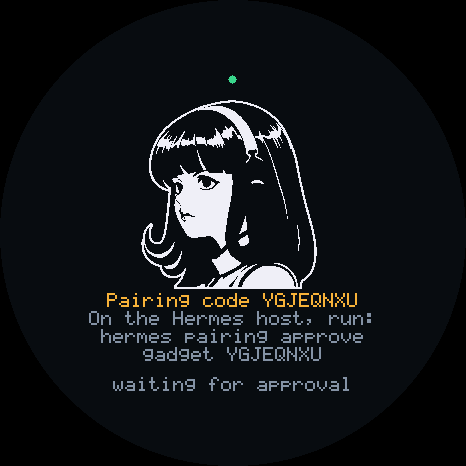
The board shows the code . On your Hermes computer, run:
hermes gadget pairIt names the board and asks before approving it. You can also run
.Your gadget is ready. Hold TALK, or the screen on a touch board, and ask it something.
New firmware reaches it over Wi-Fi, with no cable or page needed. On your Hermes computer:
hermes gadget update <name> --latest
Technical details
Troubleshooting
The board isn't in the browser's list
Try another cable: many USB cables only charge. On Windows, a DevKit's UART port needs the driver for its USB chip (CP210x or CH34x). On Linux, add yourself to the dialout group and log in again.
It won't connect, or stops partway
Close anything else using the port, such as a serial monitor or idf.py monitor. Then hold the board's BOOT button, press and release RESET (or plug it in while holding BOOT), let go of BOOT, and try again.
It doesn't join the Wi-Fi
Check the password, and that the network is 2.4 GHz. The board's console only takes plain ASCII, so a network name or password with other characters has to be built into the firmware instead (idf.py menuconfig, then Hermes Gadget).
It's on Wi-Fi but doesn't reach Hermes
Check the address with hermes gadget info on the Hermes computer, that the gateway is running, and that its firewall lets the board in on port 8765. The board has to be able to reach that address from its network.
Something else
With the board plugged in, save its diagnostics report, then open an issue with the file attached.
From a terminal, hermes-gadget diag --port <port> saves the same report.