 Hermes Gadget
The simulator
New here? Follow Try the simulator for installation and your first conversation. This page covers controls, board profiles, and scripting.
hermes-gadget sim runs the production device core (firmware/core) as a shared library inside a Python host.
Real code, same as on the ESP32:
- protocol, authentication and enrollment;
- reconnect and backoff, heartbeat, pairing UX;
- push-to-talk and VAD, playback control;
- the UI renderer, device actions, telemetry, the serial console.
Simulated, replacing the drivers:
- Wi-Fi: a checkbox;
- the WebSocket: Python
websockets; - the display: a Tk window;
- microphone and speaker: WAV files, or PC audio with
--live-audio; - NVS: a JSON file;
- buttons: the keyboard.
A bug reproduced in the simulator is therefore a bug in the firmware.
Running
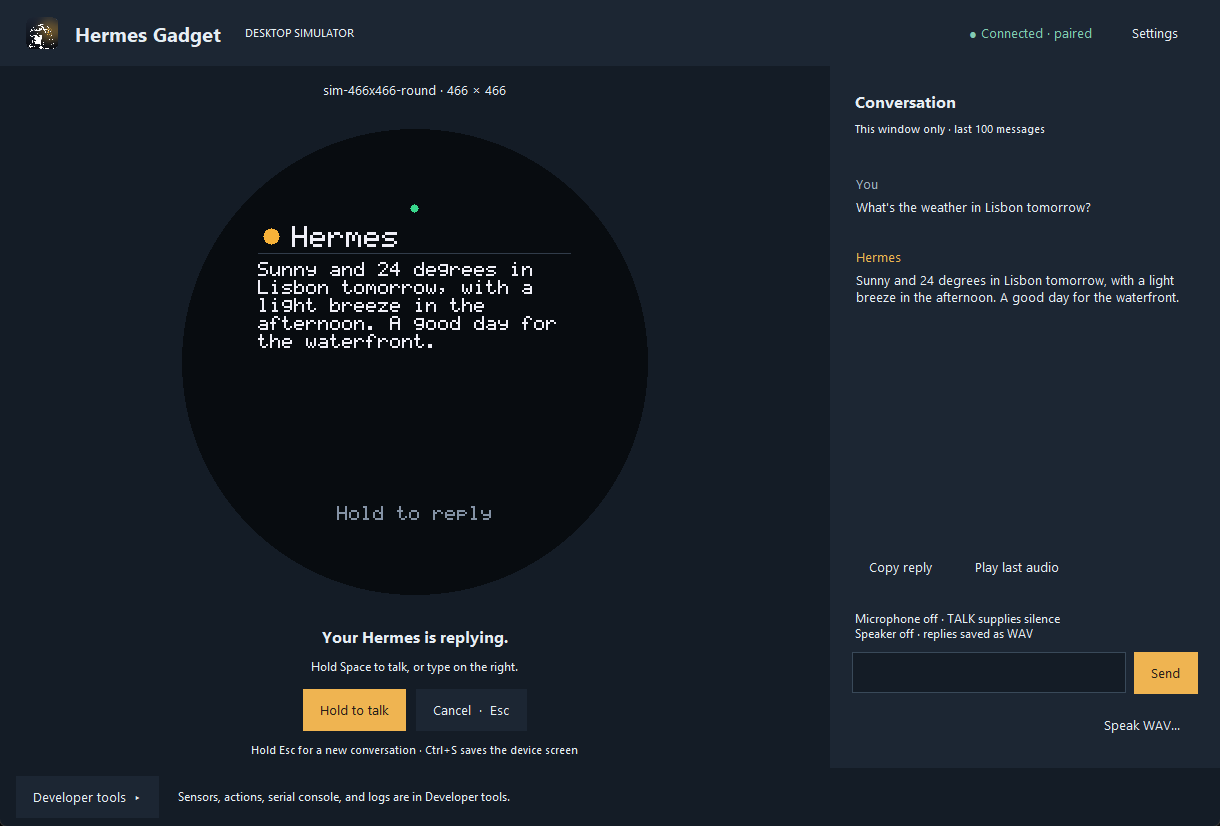
The main window shows the device and the current conversation. Developer tools replaces the conversation panel with sensors, device actions, the serial console, and logs. Choose Back to conversation to return.
Settings changes the gateway address, board profile, microphone, and speaker. Audio uses the system's default devices; change those in your operating system's sound settings. A board change restarts the simulated device and keeps its stored identity. Large boards use a smaller zoom to fit the display, including half size on short screens.
Typed messages and voice transcripts appear beside replies as they stream. Copy reply copies the latest reply. Play last audio replays the latest recorded reply through the computer's default output. Conversation text stays in memory, limited to the last 100 messages, and clears when you start a new session. Audio files remain in the state directory described below.
hermes-gadget build-sim                     # once, and after changing firmware/core
hermes-gadget sim --url ws://127.0.0.1:8765/gadget [--board sim-320x240] [--name "Desk"] [--live-audio]
A first session, start to finish:
- Start Hermes with the gadget plugin (or
hermes-gadget devserver --pairingfor a stand-in that needs no Hermes). - Run
hermes-gadget sim --url ws://127.0.0.1:8765/gadget --live-audio --board sim-466x466-round. - The screen shows a pairing code. Approve it on the Hermes host:
hermes gadget pair(orhermes pairing approve gadget <CODE>). - Hold Space, ask something, let go. Hermes answers on screen and through your speakers.
- Hold Esc for 2 s to start a fresh conversation.
| Input | Action |
|---|---|
| Hold Space / TALK button | Push-to-talk |
| Esc / CANCEL | Discard a recording, close a card, stop a turn |
| Hold Esc / CANCEL for 2 s | Start a new Hermes session (/new); a countdown shows in the hint bar |
| Hold Space + Esc for 1 s | Open or close the device's settings and local hardware checks |
| Space / Esc on a question | Answer yes / no |
| Up / Down | Scroll a long reply (long replies also page by themselves) |
| Ctrl+S | Save a PNG screenshot into the state directory |
| Text box | Send a typed message, as from a keyboard device |
| Speak WAV... | Hold TALK while a WAV file plays into the microphone |
| Settings | Change the gateway, board profile, or live audio; reconnect |
| Developer tools, Wi-Fi checkbox | Simulate losing the network |
| Developer tools, sensors | Battery and temperature sliders, reported to Hermes as telemetry |
| Developer tools, serial console | The same commands as the board's UART console (help, status, set server ...) |
The simulated device registers two demo actions the agent can use: led.set (a virtual LED in the window) and buzzer.beep.
The device settings menu runs in the native firmware core. On touch profiles, hold the device title bar to open it. You can also enter settings in the serial console. The desktop Settings dialog configures the simulator host; the device menu changes saved volume, brightness, and talk mode.
State lives in ~/.hermes-gadget/sim/<name>/ (override with --state-dir):
nvs.json: device key and settings. Delete it to look like a brand-new device.audio/: every reply the speaker played, as WAV.screenshots/: screenshots saved with Ctrl+S.update.bin: the last firmware image installed over the air.
Like a board, the simulated device takes firmware updates (hermes gadget update, or update <path> in the dev server). It checks the image the way the core does and keeps only ESP32 app images. Then it "restarts": it drops the connection and connects again, still running the simulator.
Boards
| Board | Screen | Notes |
|---|---|---|
sim-320x240 |
320×240 | Default; matches the reference breadboard |
sim-240x135 |
240×135 | Small TFT; text drops to scale 1 |
sim-480x320 |
480×320 | Larger panel |
sim-240x240 |
240×240 | The 1.54" LCD board: two buttons, no scroll buttons, so long replies page by themselves |
sim-240x240-nospeaker |
240×240 | No speaker, so replies stay text only |
sim-466x466-round |
466×466 round | The 1.75" AMOLED touch board: hold the mouse on the screen to talk, click to answer yes, drag down to cancel. No scroll buttons, so long replies page by themselves |
Add a profile to BOARDS in python/hermes_gadget/sim/runner.py to mirror new hardware.
Headless and scripted runs
hermes-gadget sim --headless --url ws://127.0.0.1:8765/gadget --script examples/scripts/smoke.txt
Script commands, one per line:
| Command | Effect |
|---|---|
wait <screen>[|<screen>] [timeout] |
Wait until the device shows that screen |
text <message> |
Send a typed message |
press / release / tap <talk|cancel|up|down> |
Button input |
wav <file> |
Speak a WAV file (holds TALK for its length) |
sleep <seconds> |
Keep the device running |
console <line> |
Run a serial-console command |
status |
Print the device status |
screenshot <file.png> |
Save the screen |
expect <text> |
Fail unless the last reply contains <text> |
Screens are boot, offline, connecting, pairing, ready, listening, thinking, responding, card, image, prompt, updating, settings, setup and error. The setup screen belongs to the ESP32 phone-setup flow; the simulator does not start a Wi-Fi access point.
Using it from Python
from pathlib import Path

from hermes_gadget.sim import Simulator

sim = Simulator(url="ws://127.0.0.1:8765/gadget", state_dir=Path("/tmp/dev1"))
sim.start()
sim.wait_screen("ready")
sim.type_text("what's the weather?")
sim.wait_for(lambda: sim.last_received("turn.end") is not None, timeout=60)
print(sim.last_received("reply")["text"])
sim.screenshot("reply.png")
sim.close()
tests/test_sim_hub.py and tests/test_gateway_e2e.py are worked examples.